How to Make a Rumpelstiltskin AI Video
Open Rumpelstiltskin AI and choose your photos. Generation is free for a limited time, with no login required.
These instructions also work on Rumpelstiltskin AI Video Generator. For details of the movement in the included preset, see Rumpelstiltskin Dance Video Generator.
1. Choose your dancer photo
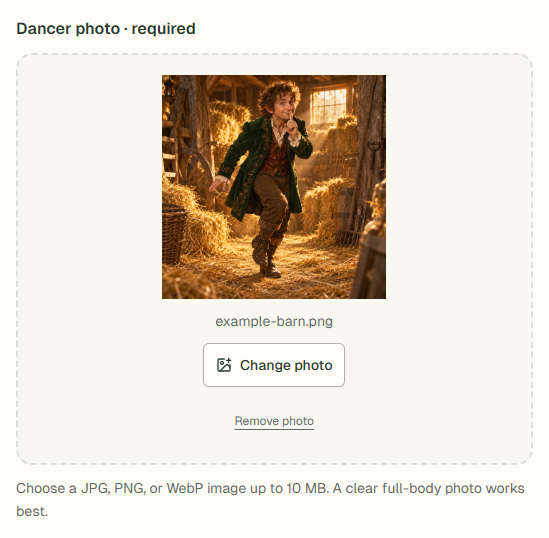
Click "Choose dancer photo" in the "Dancer photo · required" box and select a JPG, PNG, or WebP file up to 10 MB from your device.
Use one person per photo and include as much of the body as possible, including the feet. Check the preview and click "Change photo" if you need a different image.
2. Use the included dance template
The maker uses one preset: a 10-second dance in a straw corner. The background and dance sequence are already selected.
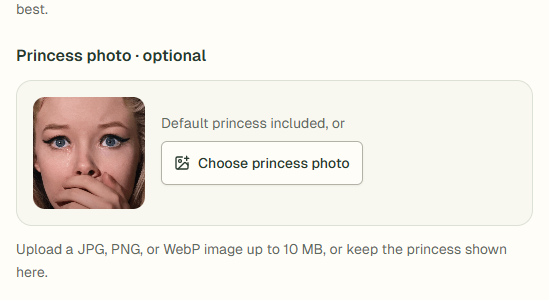
Keep "Default princess included", or click "Choose princess photo" to replace her with a second JPG, PNG, or WebP file up to 10 MB.
The template asks the model to keep both characters' reference outfits and use the fixed straw background.
3. Generate the video
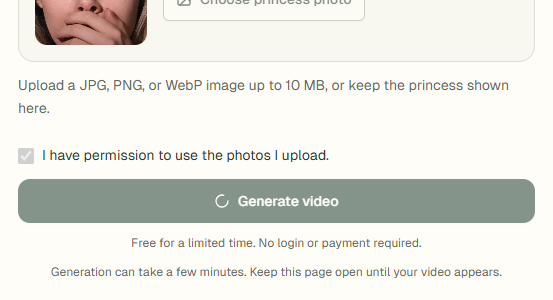
Tick "I have permission to use the photos I upload." and click "Generate video".
Wait while the status reads "Generating your dance video…" and keep the page open. Generation can take a few minutes.
The finished preview appears under "Your dance video" when the job completes.
4. Download the MP4
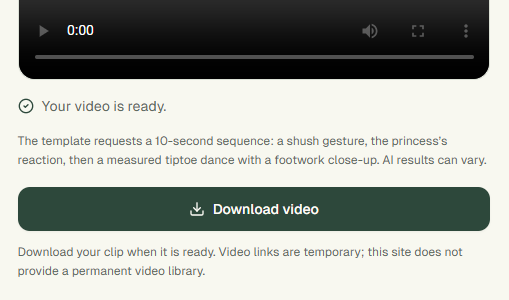
When "Your video is ready." appears, use the preview player to check the clip, then click "Download video" to save the MP4.
The download is named rumpelstiltskin-ai-dance.mp4; on a phone, look in your browser's downloads if it does not open automatically.
If the download fails, try "Download video" again while the result is available. Contact zw83716@gmail.com if the problem continues.
Common Problems
Why is Generate video greyed out?
Choose a dancer photo and tick the photo-permission checkbox. Changing either reference photo clears that checkbox, so tick it again after making changes. The button also stays disabled while a video is being generated or when generation is unavailable.
What if the video is taking too long?
Generation can take a few minutes. Keep the page open until the result appears. Contact zw83716@gmail.com if generation remains stuck.
Why does the face or dance look different from the reference?
The model generates new motion, so facial details and shot timing can vary. Use a sharp photo with the face and body visible before starting, then preview the finished result before sharing.